Reset your password
If you forgot your password, you can reset it directly from the sign-in screen.
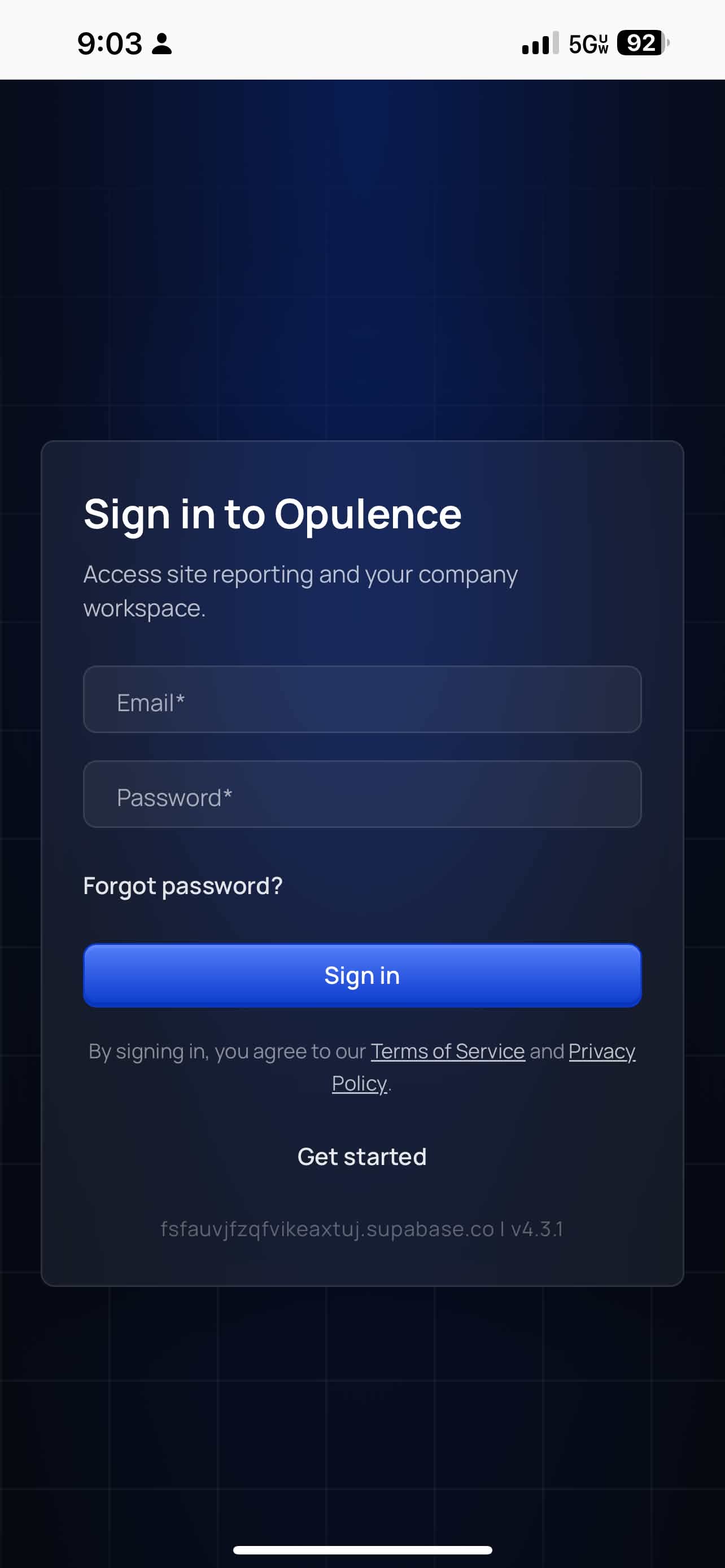
Step 1 — Tap Forgot Password?
On the sign-in page, tap Forgot Password? below the password field.
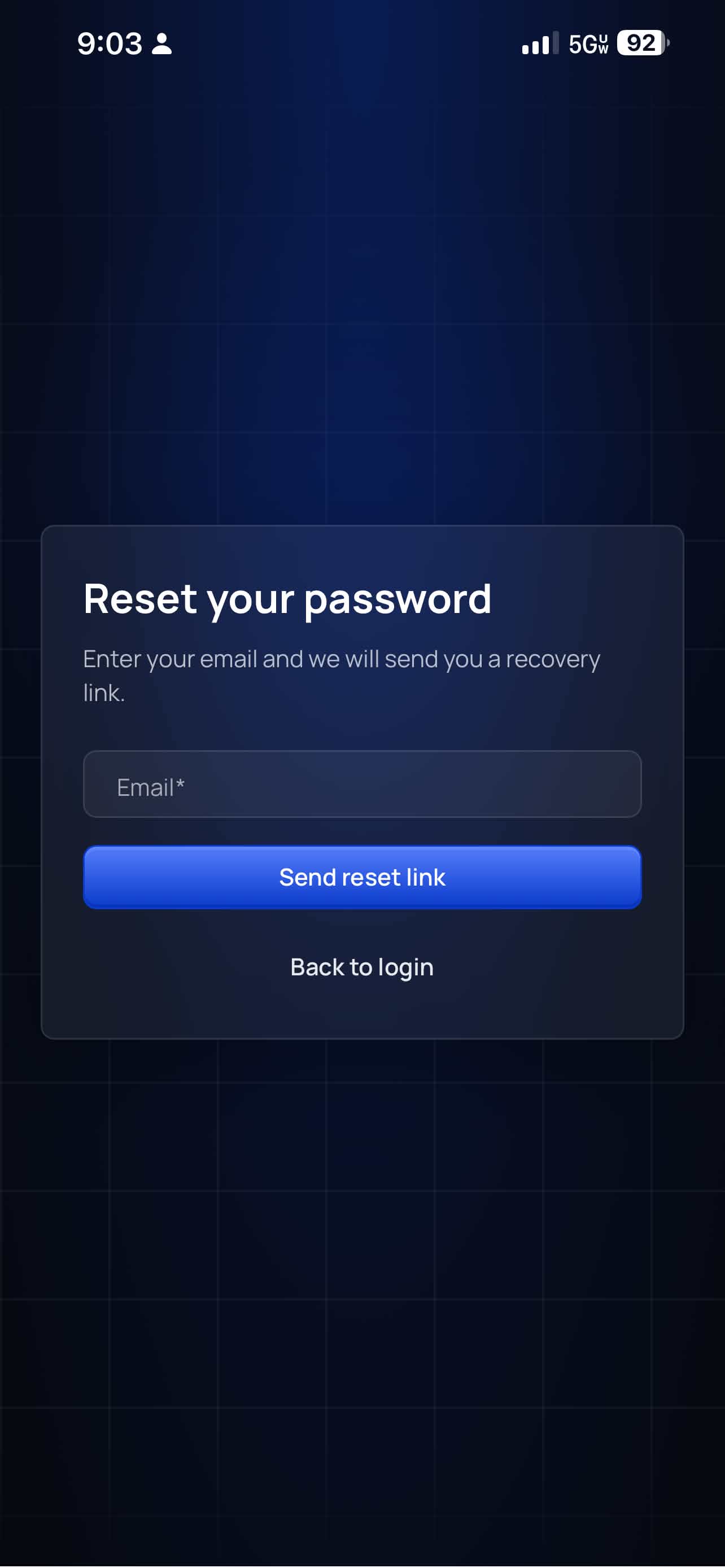
Step 2 — Enter your email
Type the email address associated with your Opulence account and tap Send reset link.
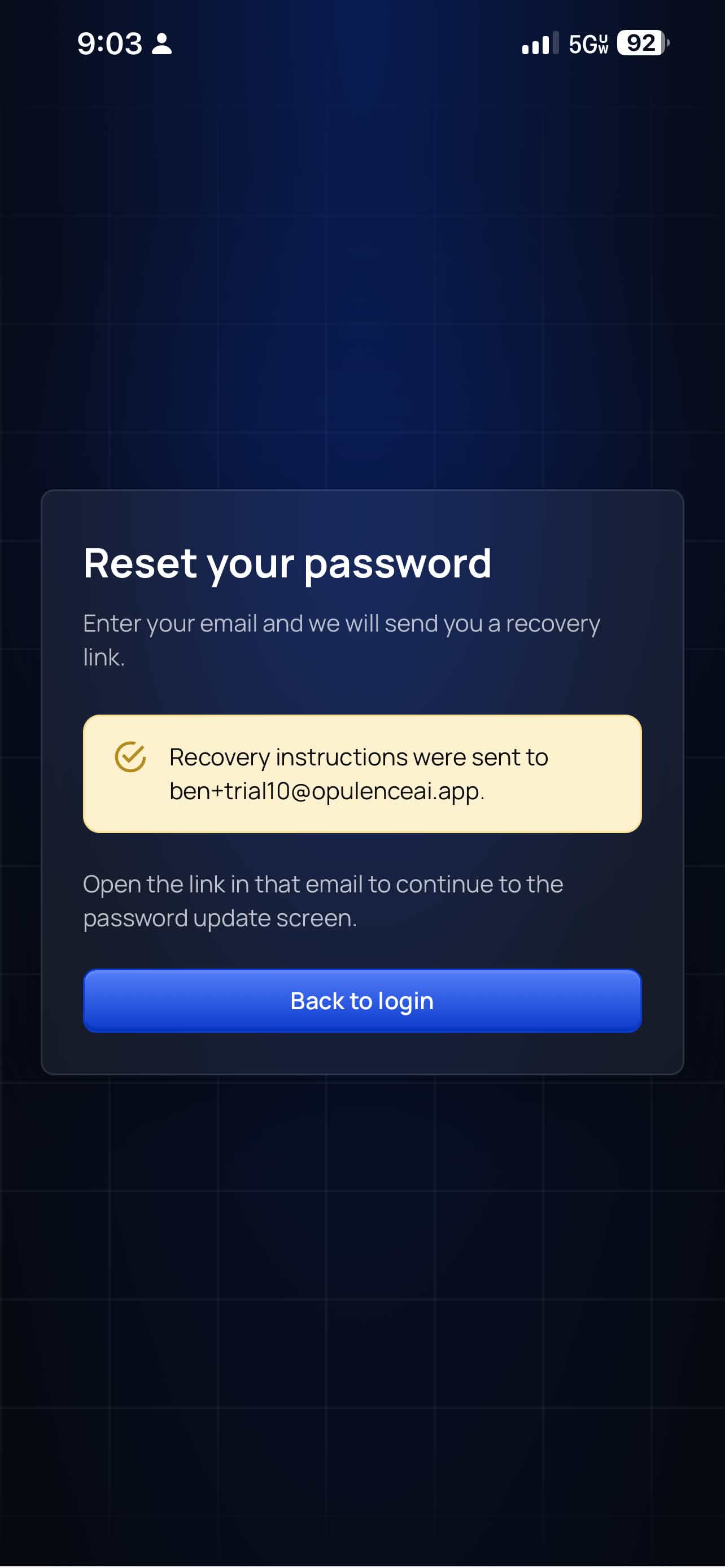
Step 3 — Confirm the request
You will see a confirmation message that password recovery instructions were sent to your email.
Step 4 — Open the reset email
Check your inbox for the Opulence password reset email, then tap Reset Password.
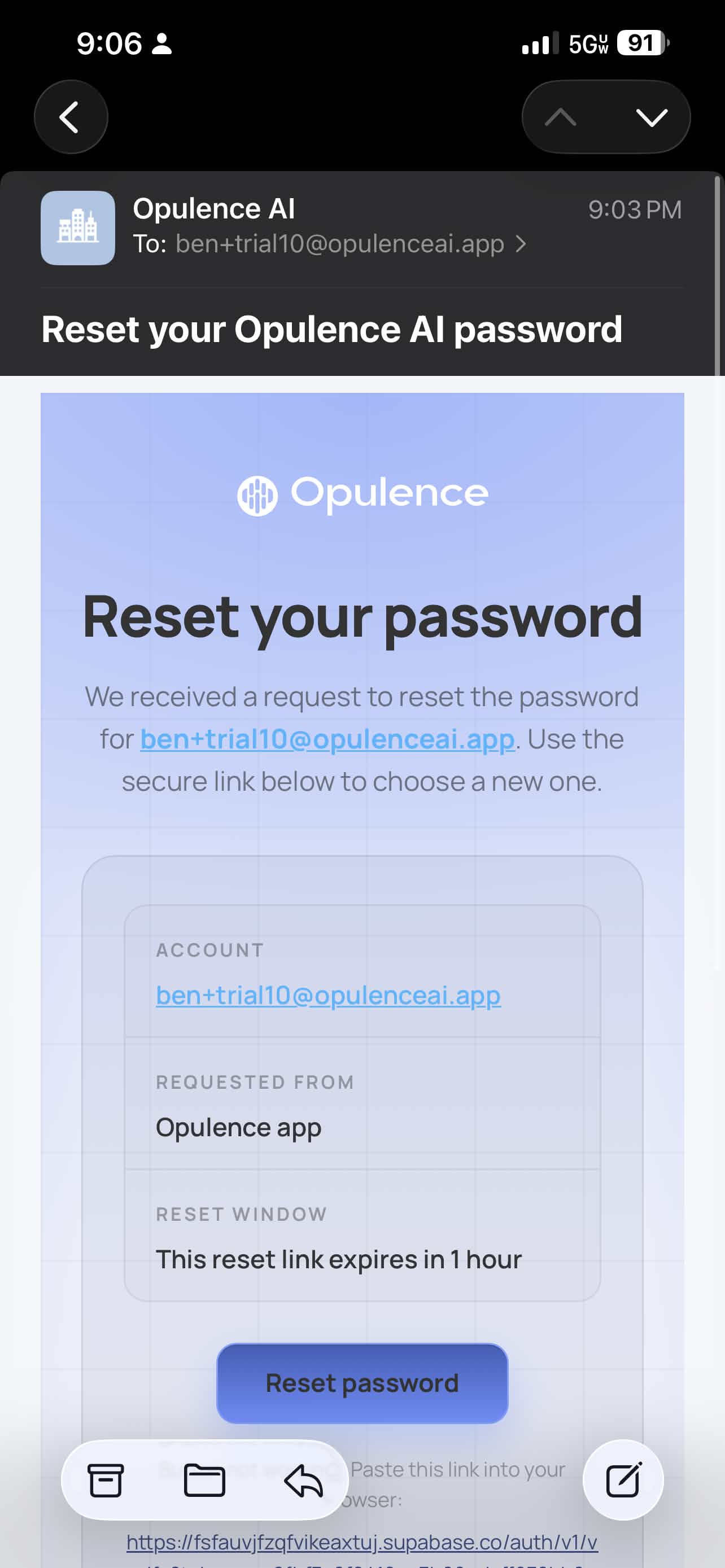
If the email does not show up right away, check spam or junk.
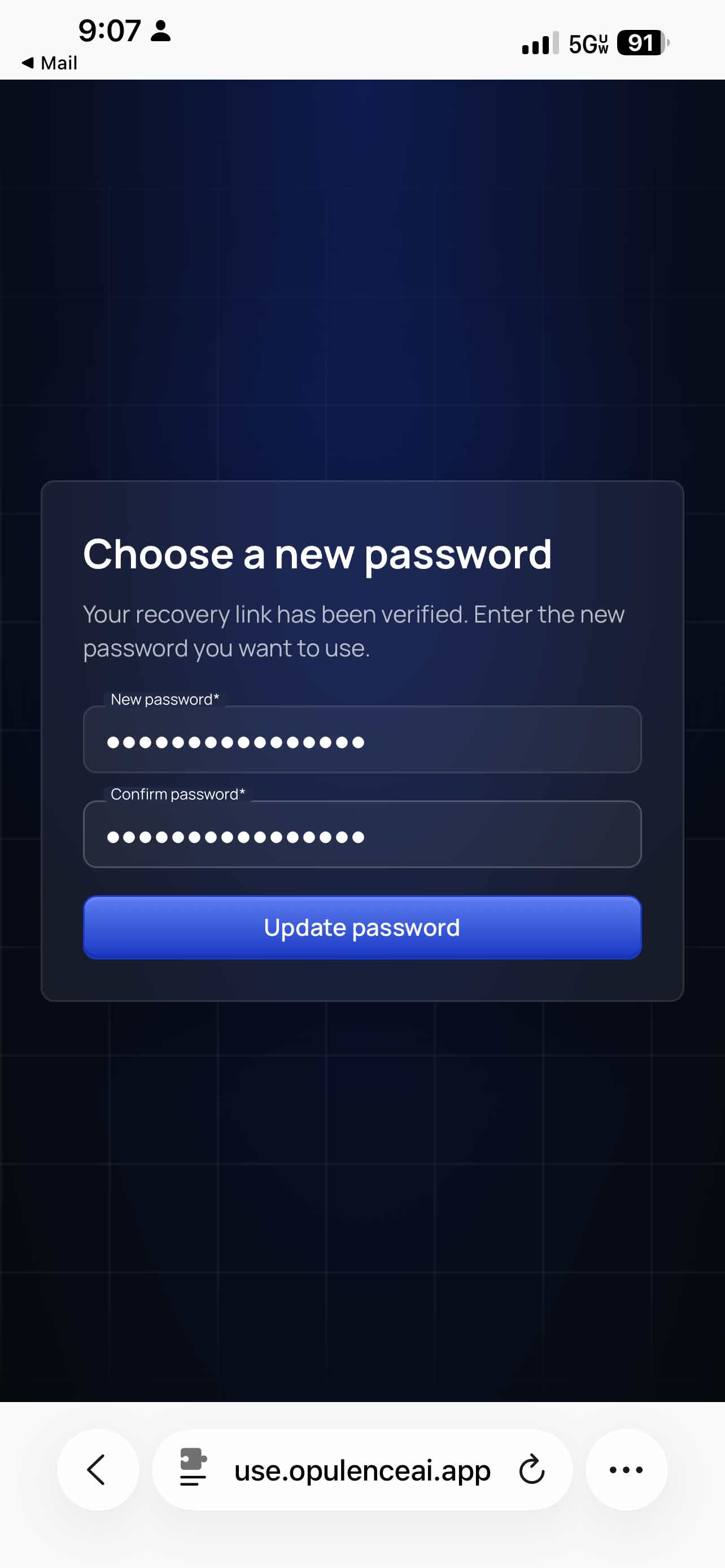
Step 5 — Choose a new password
Enter and confirm your new password, then tap Update Password.
Step 6 — Sign in again
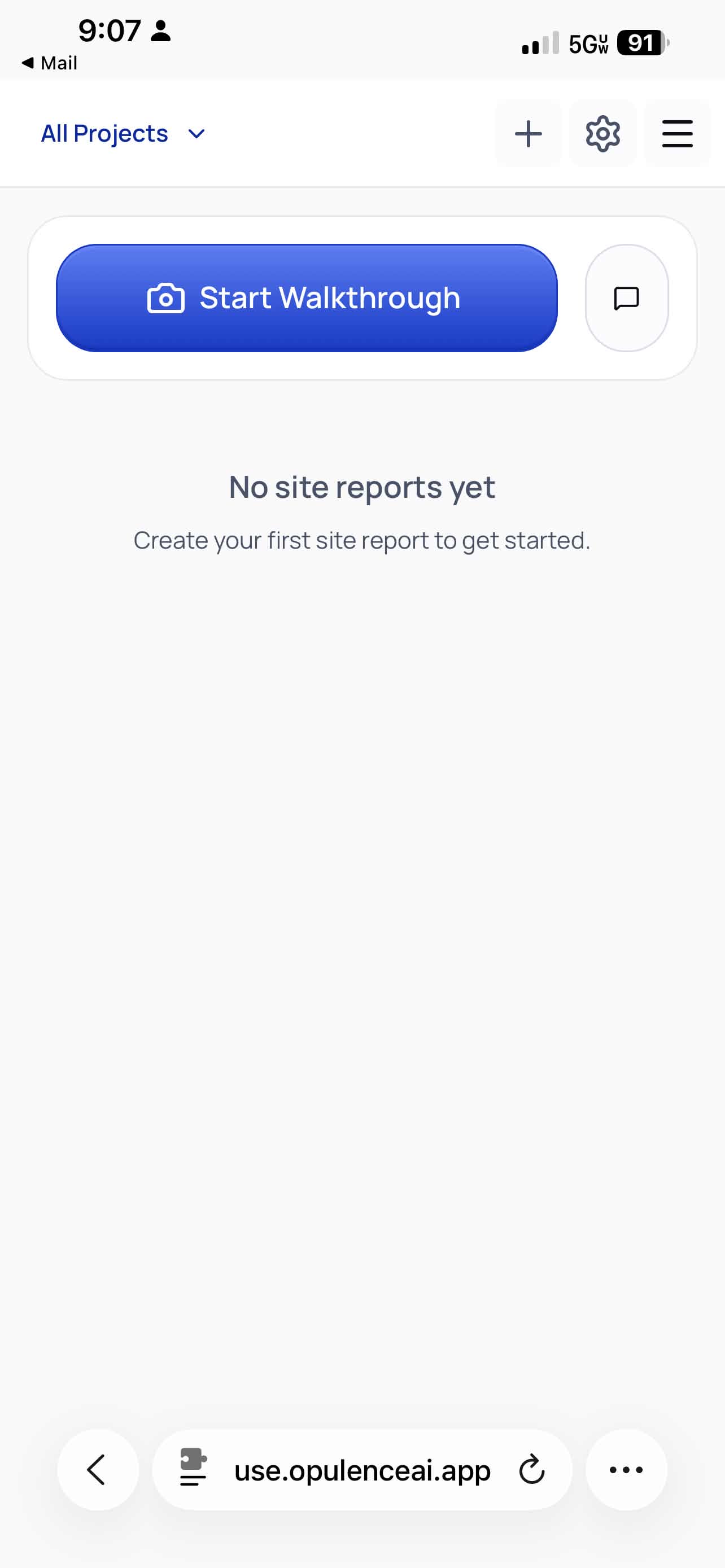
Return to the app and sign in with the new password.
Still blocked?
If the reset link does not arrive or you still cannot access your account, contact the person coordinating your Opulence rollout and confirm the email address tied to the account.